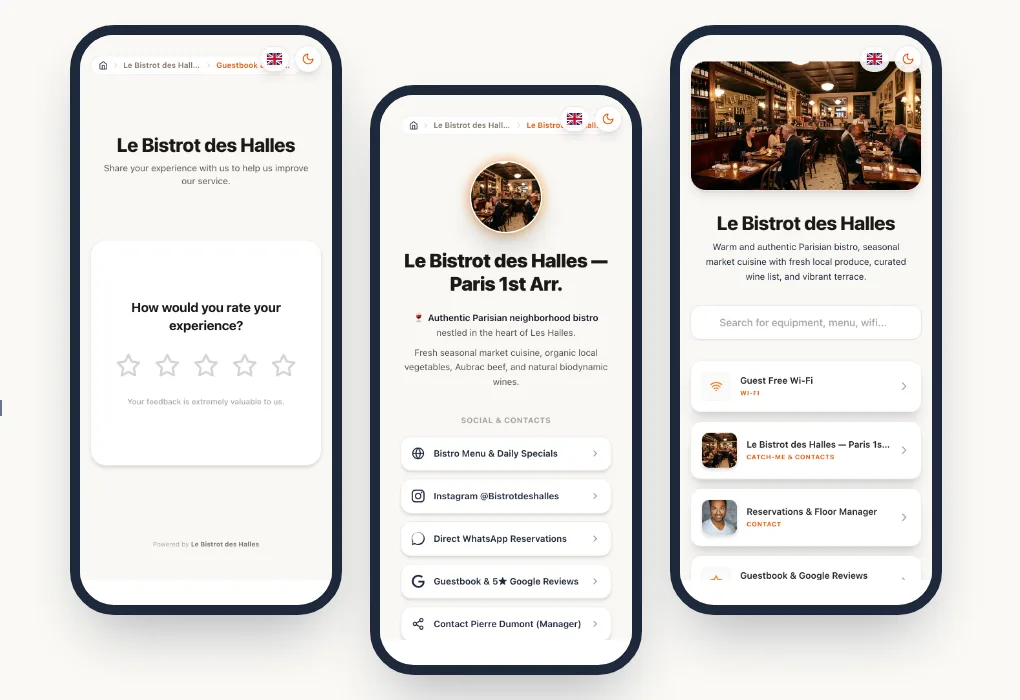
Most happy customers never leave a review. Not out of ill will, but because nobody asks them and finding the Google listing takes time. A QR code that opens the review form directly removes that friction: one scan, a rating, a few words, done.
This guide explains how to get the review link from your Google Business Profile, create the QR code, place it in the right spot and stay within Google's rules.
In short
Get the "Ask for reviews" link from your Google Business Profile, turn it into a QR code (ideally a dynamic one), and place it where the customer has time: when the bill arrives, at the counter, at the front desk. Ask all your customers for a review, with no incentive and without screening out unhappy ones.
Step 1: get your Google review link
Google provides the review link in the management area of your Business Profile.
- Sign in with the Google account that manages your business.
- Search for your business name on Google Search or open Google Maps: your profile's management panel appears.
- Click Ask for reviews (or "Get more reviews", depending on the interface).
- Copy the link provided. It opens the rating window of your profile directly.
If you don't see this button, check that your profile is verified and that you are signed in with an owner or manager account.
Step 2: create the QR code
You have two options.
A static QR code, which contains the Google link directly. It is free and works without a subscription, but it can never be edited and gives no statistics. You can create one with the Pliyos free QR code generator.
A dynamic QR code, which goes through an editable short link. You can change the destination without reprinting (another platform, a new listing after a move) and count scans. For a detailed comparison, read our article on static vs dynamic QR codes.
For materials printed in large numbers and kept for a long time (table tents, stickers, bill folders), dynamic is almost always the better choice.
Step 3: place the QR code at the right moment
Ask for a review once the customer has had the experience and has a few seconds to spare. Placement matters as much as the QR code itself.
Always add a short line explaining what the QR code does, for example: "Your review helps us: leave it on Google in 30 seconds". A QR code without explanation gets scanned far less.
And talk about it. A waiter or receptionist who simply says "if you enjoyed it, a review would really help us" does more for your reviews than any display.
Google's rules to follow
Google strictly regulates how businesses ask for reviews. Breaking these rules can lead to the reviews being removed, or even restrictions on your profile.
Don't offer anything in exchange for a review (discount, free drink, prize draw), and don't ask only satisfied customers. Google prohibits both incentivised reviews and screening customers before inviting them to leave a public review.
In practice:
- Ask all your customers for a review, not only those who seem happy.
- No reward tied to posting a review, even for an "honest" one.
- No reviews written by you or people close to you, and no bought reviews. In many countries, including across the EU, fake reviews are an unfair commercial practice.
- Reply to reviews, positive and negative. A calm, factual reply to a negative review reassures future customers.
Collect private feedback too
An unhappy customer won't necessarily leave a review, but they would often be willing to tell you what went wrong if it were easy. Giving them a way to write to you directly lets you fix the problem while they are still there.
That's how the Pliyos review QR code works: after scanning, the customer gives a rating. If they are happy, they are invited to post their review on Google (or TripAdvisor, TheFork, Trustpilot). If they have a concern, they can also send it to you through a private form, and you are alerted. In every case the link to the public review stays available: every customer can post a review, whatever their rating.
The QR Starter plan (€5 per month) includes this review QR code, with scan statistics.
Frequently asked questions
Does Google provide its own QR code?
Depending on the interface, Google offers to share the review link and sometimes a QR code. It is a static code to Google only, with no statistics and no way to switch platforms.
How many reviews can you expect?
It depends mostly on placement and on how your team mentions it. Compare the number of scans and new reviews month on month to see which displays work.
Can the same QR code be used for several locations?
No, each location has its own Google listing and therefore its own review link. With dynamic QR codes, you manage one QR code per location from the same dashboard. For a network or an agency managing many locations, our guide to white-label QR codes covers organising by client and by domain.
What should you do about an unfair negative review?
Reply publicly, calmly, sticking to the facts. If the review breaks Google's rules (abusive language, fake customer, conflict of interest), you can report it from your profile.